What Is a Firewall? A Simple Explanation for Beginners

A firewall is a security system that controls the network traffic entering or leaving a device, server, or network. Its main job is to protect your system from unwanted access, cyberattacks, and malicious activities by allowing only safe and approved connections.

Think of a firewall as a security guard—it checks every “visitor” (data packet) and decides whether to allow or block it based on rules.

Why a Firewall Is Important

  1. Protects Against Unauthorized Access

Firewalls block attackers who try to break into your network or servers.

  1. Filters Malicious Traffic

Suspicious or harmful traffic (viruses, malware, scans) can be stopped before reaching your device.

  1. Controls Network Usage

Admins can define rules to:

Allow or deny specific ports

Limit access to certain websites

Restrict certain apps or services

  1. Maintains Privacy

Firewalls help keep your internal network hidden from the public internet.

Did you know, Sophos provide Free Firewall Home Edition ?

They provide Software appliance that can be installed on a dedicated Intel™ – compatible PC.

  • No subscription needed
  • Lightweight and doesn’t slow down the PC
  • Beginner-friendly but still has advanced options
  • More visibility than the default Windows firewall
  • Good for privacy-conscious users


Alternative for Free you may check with Open Source
  • pfSense
  • OPNsense – zenarmor can be integrated with the firewall to give you more advanced protection.

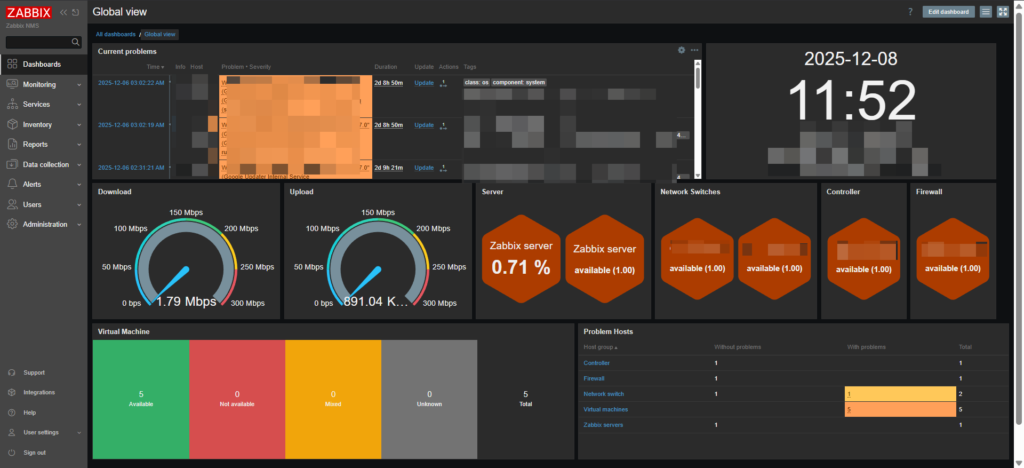
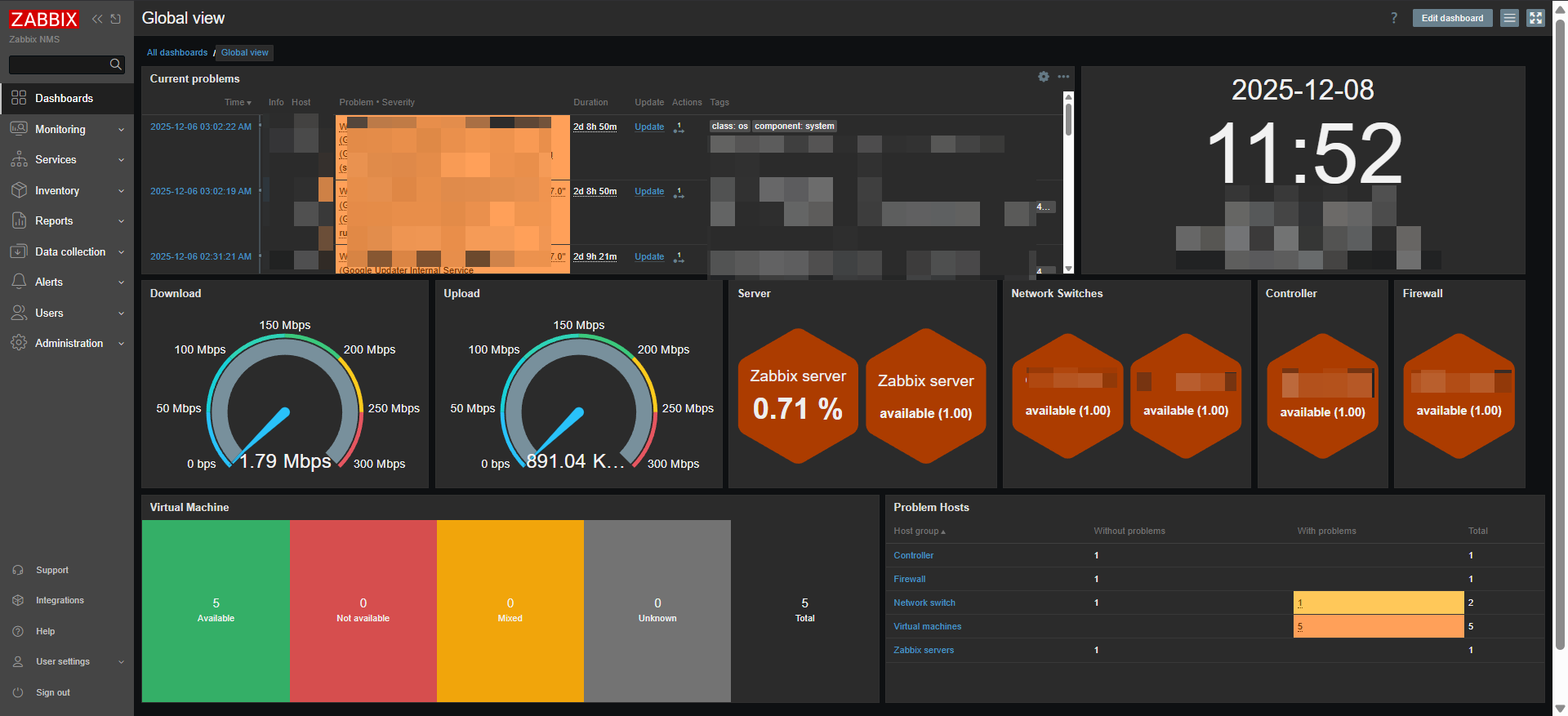
Monitor your network from a single dashboard

One solution to manage your network, firewall, server, VM & etc

Zabbix is an open-source monitoring platform used to track the performance, health, and availability of IT systems.

I kinda love Zabbix by the how it can modified or edit to show dashboard. It can either be use with SNMP v3 or agent to be monitored. I also configured it to sent to my telegram group to get notified what current happening to my infra. Zabbix Telegram Guide

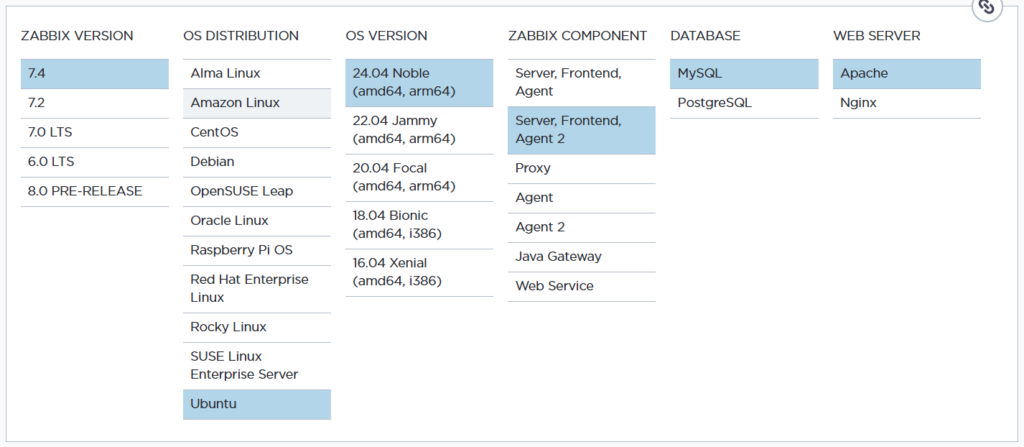
Zabbix provide installation guide which you can find through their official website.

You can find Zabbix installation through this link Click Here To Enter Zabbix Installation

a) Install and configure Zabbix for your platform# wget https://repo.zabbix.com/zabbix/7.4/release/ubuntu/pool/main/z/zabbix-release/zabbix-release_latest_7.4+ubuntu24.04_all.deb
# dpkg -i zabbix-release_latest_7.4+ubuntu24.04_all.deb
# apt update
b) Install Zabbix server, frontend, agent2# apt install zabbix-server-mysql zabbix-frontend-php zabbix-apache-conf zabbix-sql-scripts zabbix-agent2
 c) Install Zabbix agent 2 plugins

You may want to install Zabbix agent 2 plugins.
# apt install zabbix-agent2-plugin-mongodb zabbix-agent2-plugin-mssql zabbix-agent2-plugin-postgresql
Install mysql-server

I found this need to be install to run create initial database
sudo apt install mysql-server
mysql-server secure installation (Zabbix will work even if you don’t run it.)

this not necessary to configure

Running it improves database security by:
Setting root password
Removing anonymous users
Disabling remote root login
Removing test database
Reloading privileges
sudo mysql_secure_installation
d) Create initial database

Run the following on your database host.
# mysql -uroot -p
password
mysql> create database zabbix character set utf8mb4 collate utf8mb4_bin;
mysql> create user zabbix@localhost identified by ‘password’;
mysql> grant all privileges on zabbix.* to zabbix@localhost;
mysql> set global log_bin_trust_function_creators = 1;
mysql> quit;
On Zabbix server host import initial schema and data. You will be prompted to enter your newly created password.
# zcat /usr/share/zabbix/sql-scripts/mysql/server.sql.gz | mysql --default-character-set=utf8mb4 -uzabbix -p zabbix
Disable log_bin_trust_function_creators option after importing database schema.
# mysql -uroot -p
password
mysql> set global log_bin_trust_function_creators = 0;
mysql> quit;
e. Configure the database for Zabbix server
Edit file /etc/zabbix/zabbix_server.conf
DBPassword=password
f. Start Zabbix server and agent processes

Start Zabbix server and agent processes and make it start at system boot.
# systemctl restart zabbix-server zabbix-agent2 apache2
# systemctl enable zabbix-server zabbix-agent2 apache2
g. Open Zabbix UI web page
The default URL for Zabbix UI when using Apache web server is http://host/zabbix

Zabbix also offer a wide range of paid professional services that are designed to fit your unique business requirements.